
HR mobile app and AI assistant in Teams In development
HR where people already work: on their phones and in Teams
We are building two new things on the same platform: the IQHR mobile app and an AI assistant you message in Microsoft Teams as you would a colleague. Leave requests, approvals, balances and the team's schedule, without opening yet another app. The assistant only prepares requests; sending and approving are always done by a person, with a button.
IQHR mobile app In testing
Leave, approvals and the team's schedule, in your pocket
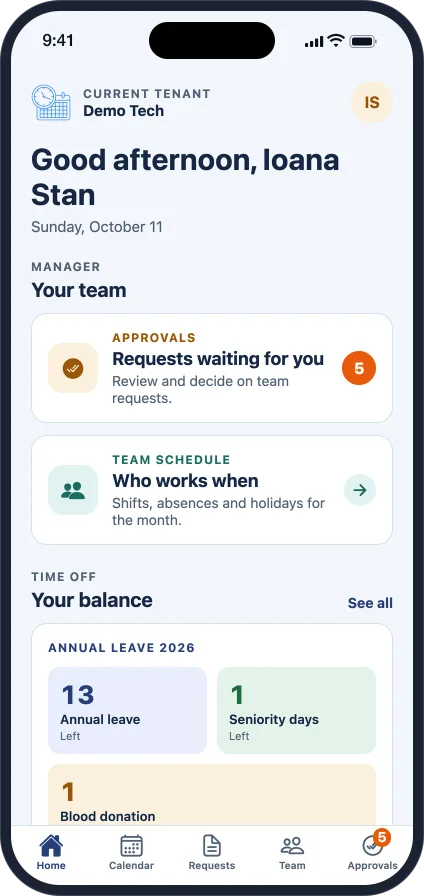
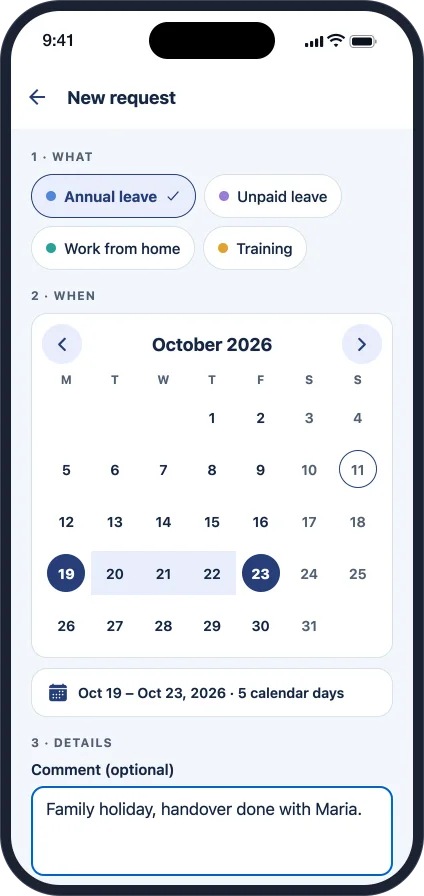
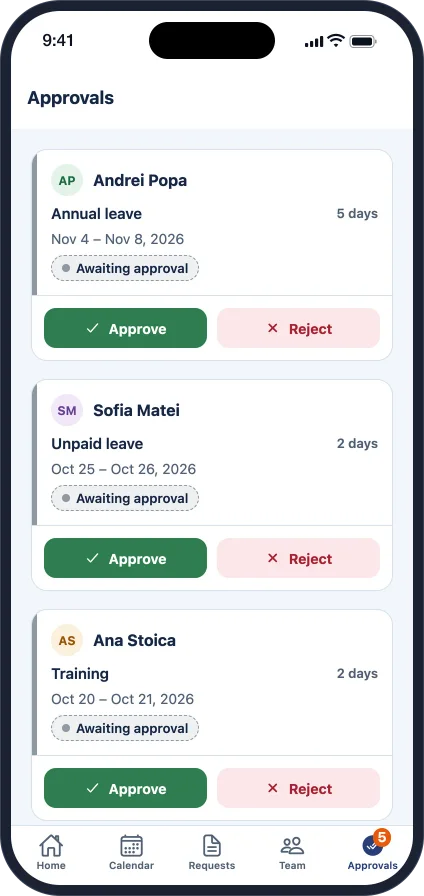
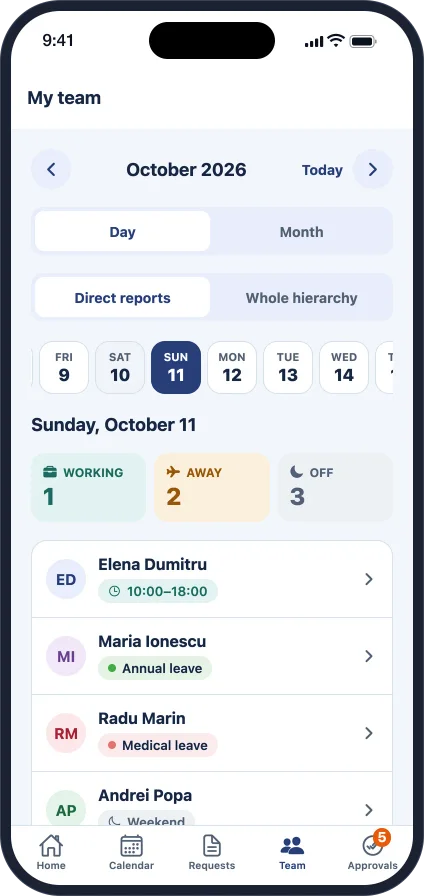
The Android and iOS app brings the most used TimeImage actions to the phone. Employees see their calendar and balance and send a request in seconds. Managers approve on the go and see who is working today.
For employees
A personal calendar with schedules, leave and public holidays, new requests in three steps, the history and status of every request, and leave balances as configured for your company.
For managers
The team's requests in a single list, approve or reject with one tap, and the team's schedule by day or by month, for direct reports or the whole hierarchy.
The same rules
The app works directly with TimeImage: the same permissions, approval workflows, delegations and closed months. Sign-in uses the company username; Microsoft account sign-in comes next.
Coming to the app Planned
Clock in and out, straight from the phone
The mobile app will be where employees clock the start and end of their working day. One button, the exact time, and the entry goes straight into TimeImage.
- One button to clock in and out, with today's schedule in view
- Entries go straight into TimeImage and the payroll totals
- Managers see who has started work, without paper lists
- Corrections go through the same approval workflow as any request
Planned feature: we are building it together with the companies in the pilot programme.
IQHR AI assistant In development
Ask for leave in Teams, as you would ask a colleague
The assistant lives in a Microsoft Teams channel, on desktop and on the phone. You tell it what you need in your own words; it asks for anything missing and prepares the request. Sending and approving are done by people, with a button.
The employee, on desktop. The AI asks and prepares the request; the employee sends it with the platform's button.
The manager, on the phone. Approves with the button, then asks for what they need next.
The ground rule
The AI prepares. You decide, with a button.
The assistant never sends, approves or changes anything by itself. It only understands what you want, asks for what is missing and prepares the request. From there, the platform checks it and shows it to you, and the decision is yours.
- You
Write what you need
“I'd like some leave next week.” In Romanian or English, on desktop or on the phone.
- AI
Asks and prepares
Asks for anything missing, such as the dates or the leave type, then fills in a draft request.
- Platform
Checks and shows
Calculates the days and the balance, applies the company's rules and shows the request in a standard card, not as text written by the AI.
- You
Press the button
“Send” or “Cancel”. Only the button sends the request; a typed message, even “yes”, sends nothing.
- Platform
The usual workflow
The request enters the company's approval workflow, and the manager also approves or rejects with a button.
What the AI assistant does
- Understands a request said in your own words
- Asks for what is missing: the period, the type, a comment
- Prepares the request and explains the rules that apply
- Answers questions about balances, the team and your requests
What it never does
- It never sends a request on your behalf
- It never approves or rejects anything
- It never changes data in the platform
- It never bypasses permissions or company rules
How this differs from autonomous AI agents
| Autonomous AI agent | IQHR assistant | |
|---|---|---|
| Who sends the request | The agent, on the person's behalf | The employee, with the “Send” button |
| Who approves | The agent, if it has the rights | The manager, with the “Approve” button |
| What you check first | Text written by the AI | A standard card generated by the platform |
| A typed “yes” in chat | Can trigger the action | Triggers nothing |
| The history shows | The agent | The person who pressed the button, with the exact time |
The request card and its buttons are generated by the platform from checked data, not by the AI. That is why they look the same every time, and what you see on the card is exactly what gets sent.
Microsoft account
People are recognised by their company account in Teams, linked to the platform through Entra ID. No new passwords.
The same permissions
The assistant sees only what the user can see in the platform. A manager sees only their own team.
A complete trail
Every request and every approval appears in the platform's history, with the person who pressed the button and the channel it came from.
Protected data
Only the minimum needed for the conversation goes to the AI model, without contact details or documents.
What you can ask
Every company workflow, in one conversation
The assistant starts with leave and approvals, then takes over the workflows you have already configured in the platform. Whatever you ask, it prepares, and sending stays one click of yours.
Employees
- “How much leave do I have left this year?”
- “I'm working from home on Thursday.”
- “I'd like Friday off for blood donation.”
- “Which of my requests are pending?”
Managers
- “What do I need to approve today?”
- “Who from the team is away next week?”
- “Show me Andrei's request.”
- “Prepare delegating my approvals to Maria while I'm on leave.”
Company workflows
- “I'd like to propose a salary change for Elena.”
- “I need a company phone.”
- “I need an employment certificate.”
- “Prepare the exit clearance for Victor.”
Where we are
The current status, with no empty promises
IQHR mobile app
Android and iOS. Calendar, requests, approvals, balances and the team's schedule work on the test environment, connected directly to TimeImage and its rules.
AI assistant
The first prototype understands balance questions and prepares leave requests, with clarifying questions. Next come platform-generated cards with confirmation buttons, the Teams channel, approvals and the other workflows.
Microsoft sign-in on mobile
Signing in to the mobile app with the company Microsoft account (Entra ID), as in the web platform.
Clocking in from the app
Clock in and out with one button, straight into TimeImage, with corrections through the approval workflow.
Would you like to be among the first?
We are looking for a few companies that already use HRImage and Microsoft Teams to pilot the mobile app and the assistant. We configure the workflows together, and your feedback decides what we build next.
I want to join the pilot